PearPass
Master Password Setup
Your master password is the key to unlocking your PearPass vaults. PearPass never stores your master password, so it's essential that you remember it once it's created.
PearPass doesn't store any of your information, including your master password. Because of this, there's no Forgot Password option, and we're unable to help recover a lost master password.
If you'd like guidance on creating a strong, memorable, and secure password, check: How To Create A Strong Password before continuing.
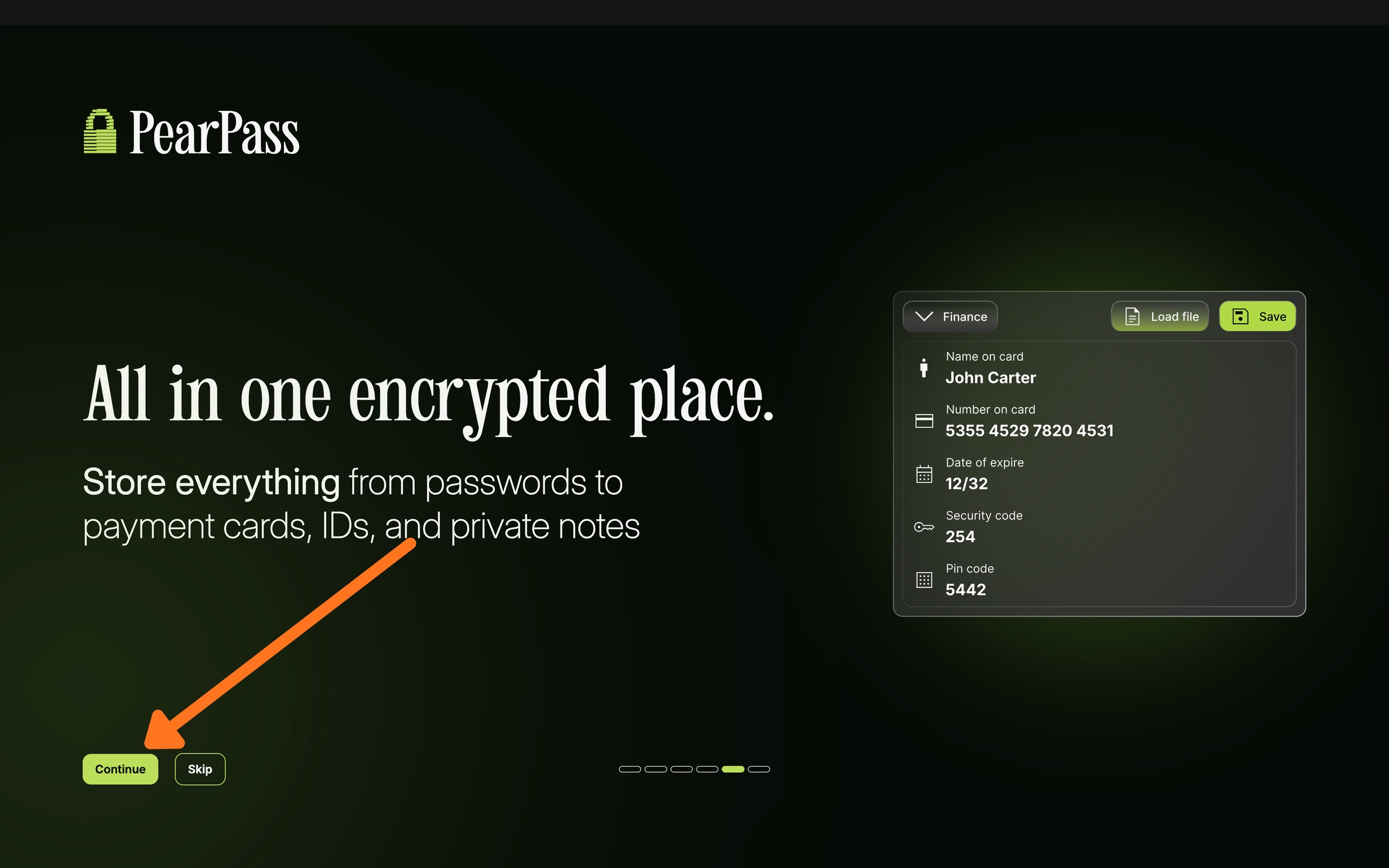
After installing PearPass, open the application on your desktop.
Click Continue
Click Continue to proceed through the PearPass onboarding and reach the master password setup screen.
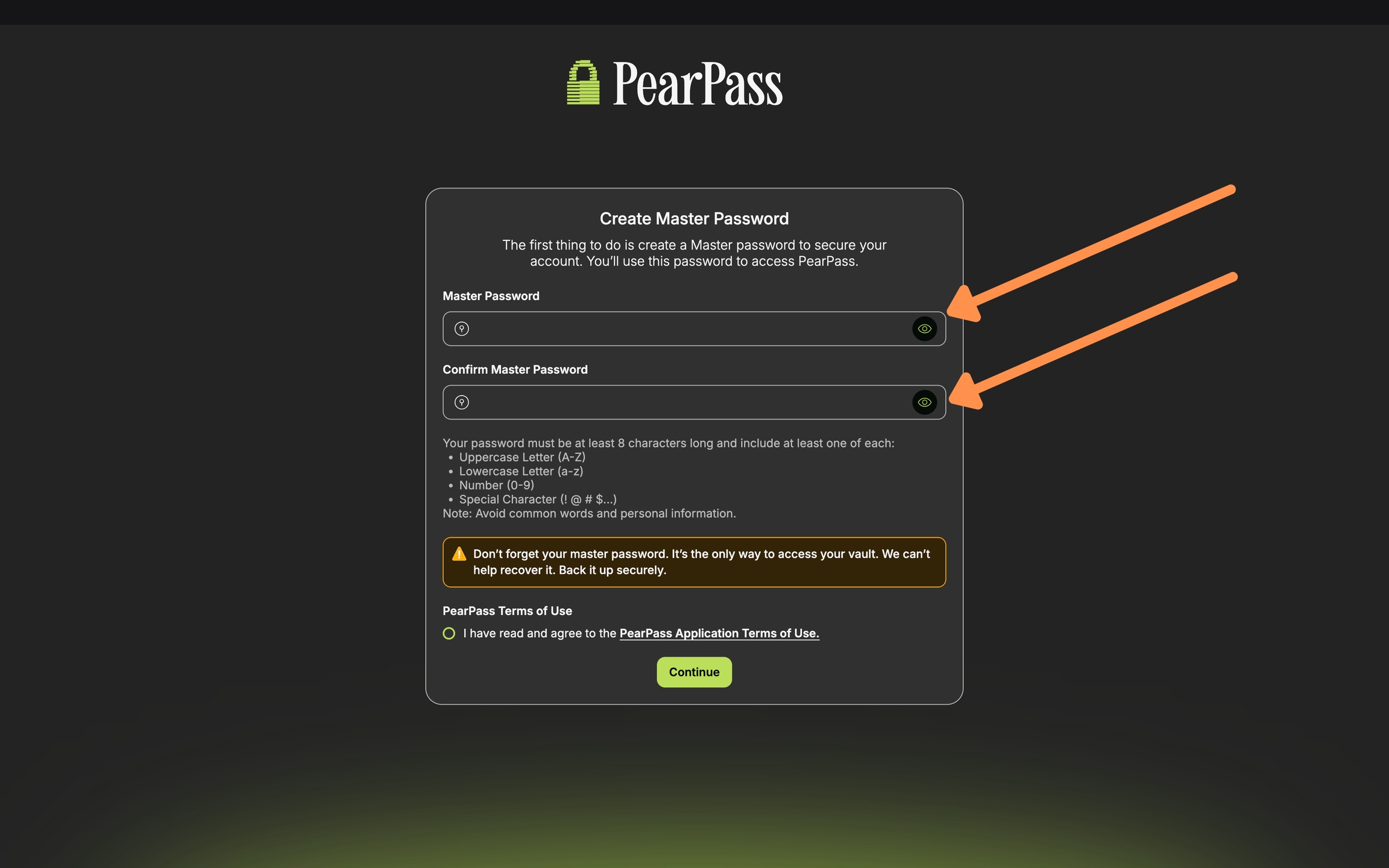
Enter your master password
Type your master password in the Password field, then retype it in the Confirm Password field to confirm. Your master password must be at least 8 characters long and include at least one uppercase letter, one lowercase letter, one number, and one special character.
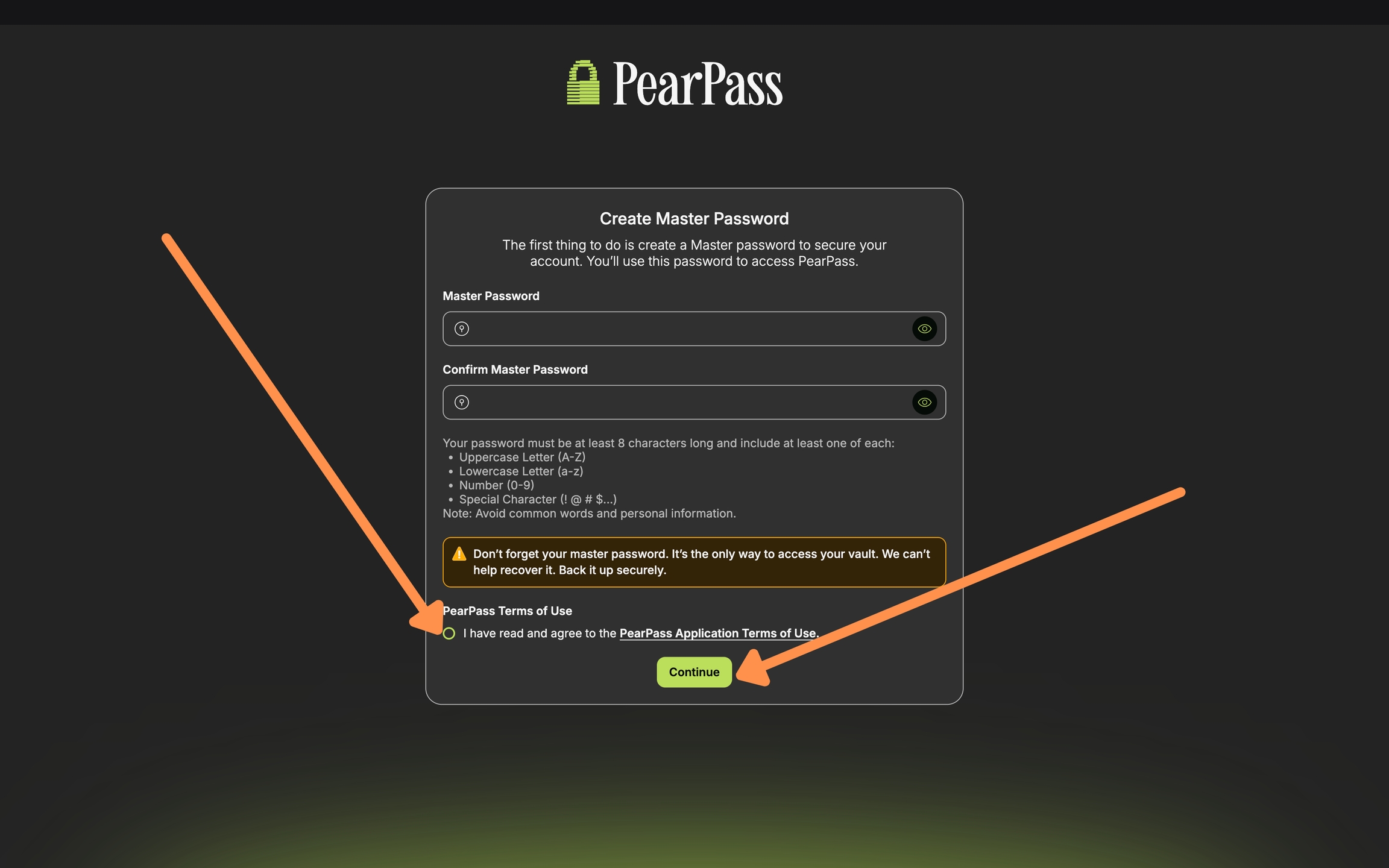
Accept terms and continue
Read and accept the terms of use, then click Continue to complete the setup process.
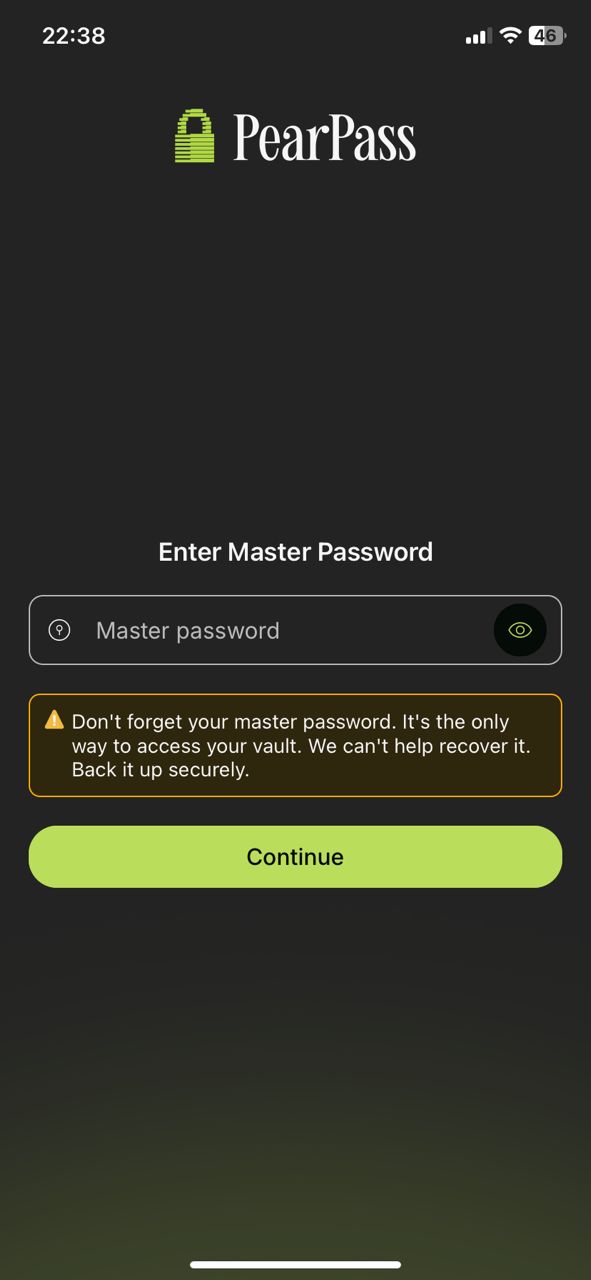
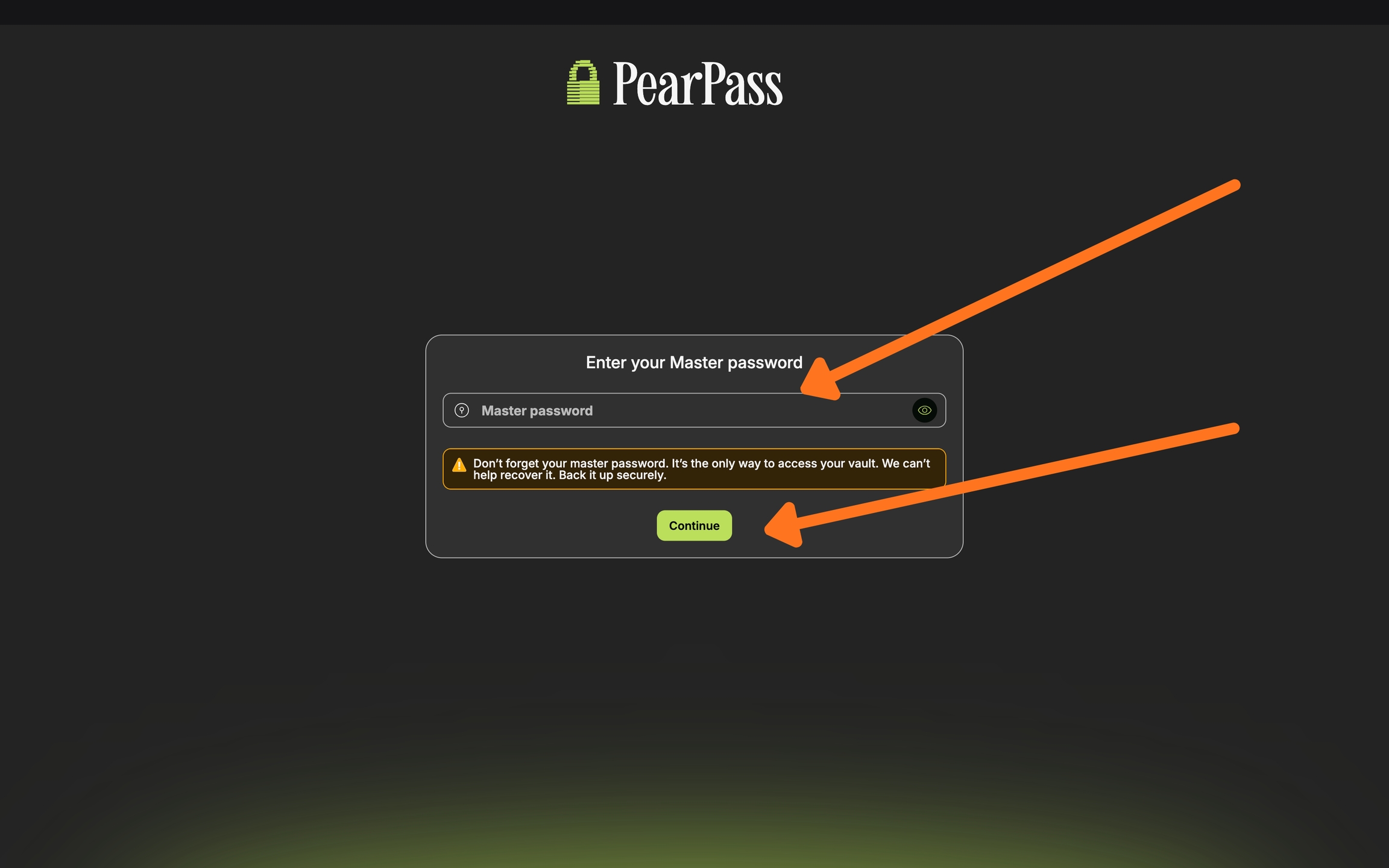
Sign in
You'll be taken to the sign-in screen. Enter your master password and sign in to confirm everything works correctly.
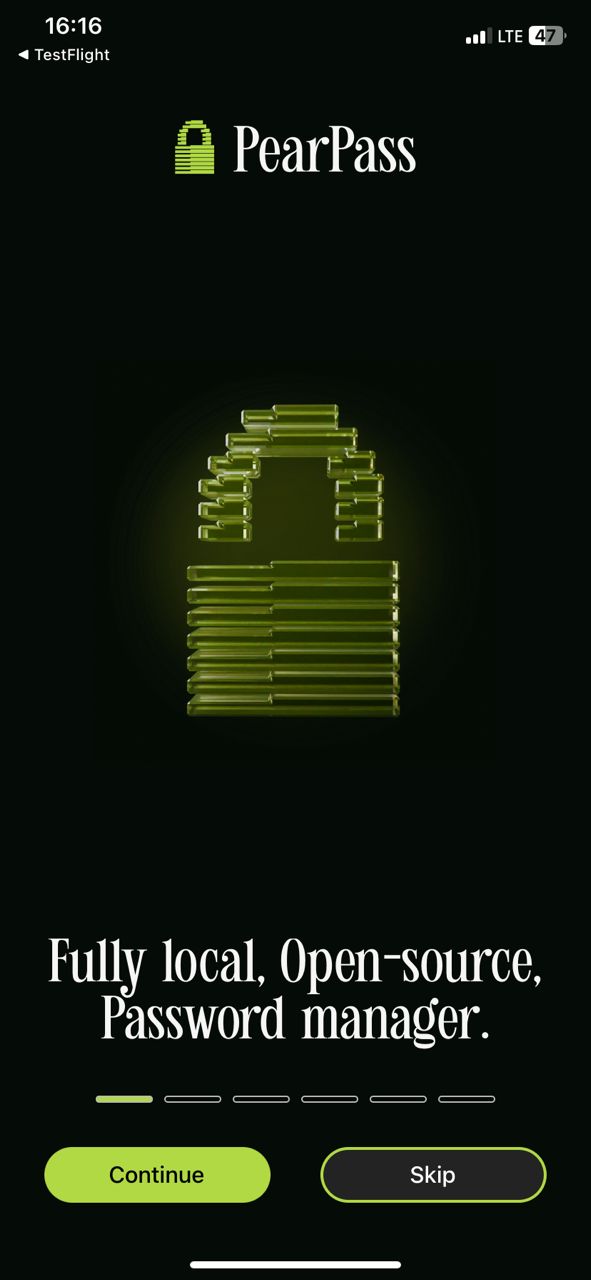
After installing PearPass, open the application on your mobile device.
Click Continue
Click Continue to reach the master password setup screen.
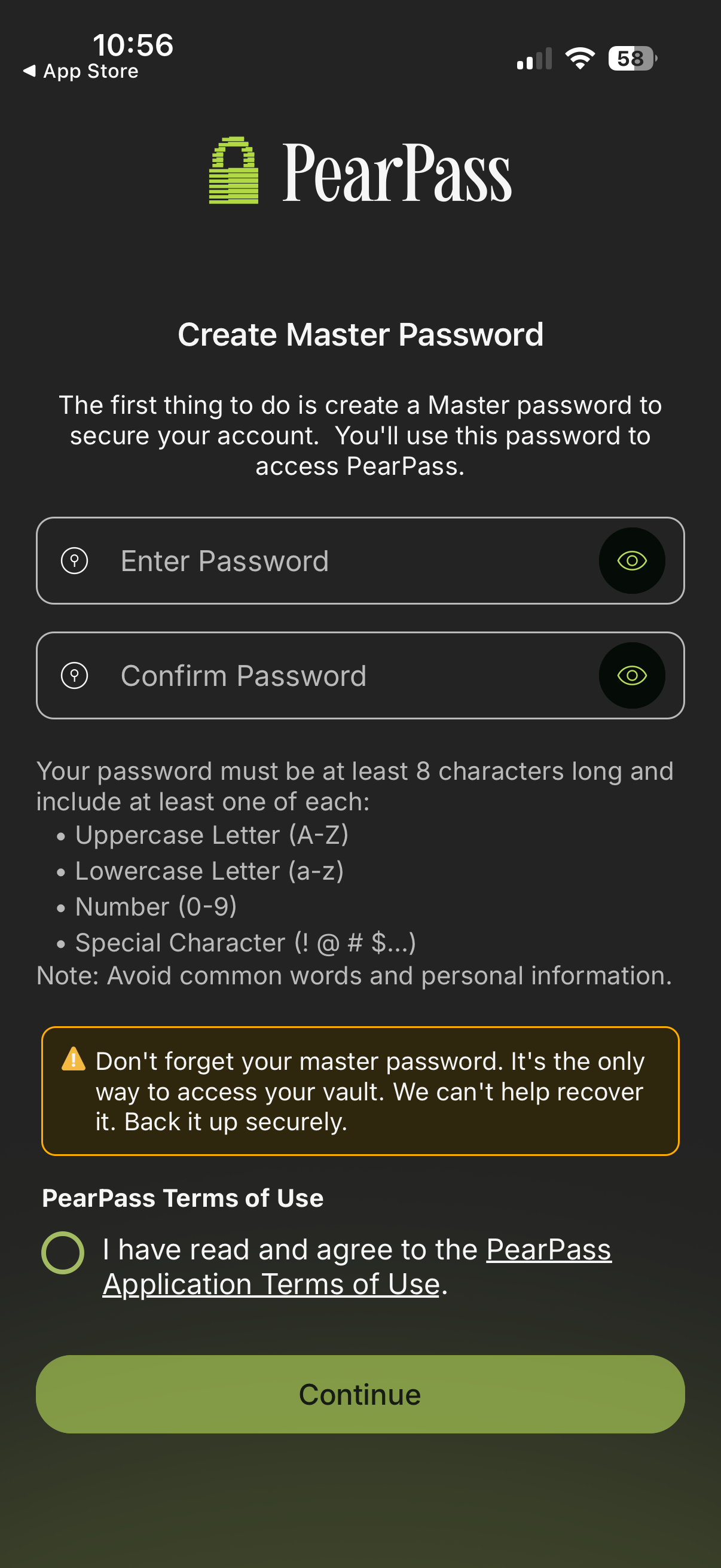
Enter your master password
Type your master password in the Password field, then retype it to confirm. It must be at least 8 characters and include one uppercase letter, one lowercase letter, one number, and one special character. Read and accept the terms of use, then click Continue to complete the setup.
Sign in
You'll be taken to the sign-in screen. Enter your master password and sign in to confirm everything works correctly.